Buy a Domain With Porkbun
In Short
Create Porkbun in your own name, check the spelling and renewal price, pay with your own method, verify the registration, secure the account, and invite a professional only when help is needed.
00. Why This Guide Uses Porkbun
Porkbun is the walkthrough example because it is an ICANN-accredited registrar with public pricing, supported privacy, DNS controls, and Authorized User access.
It is not the only good registrar. Cloudflare Registrar sells domains at cost, but domains registered there must use Cloudflare nameservers. That can add an extra concept for a first-time owner.
The ownership rules in this guide work with any reputable registrar.
01. Prepare Before Checkout
Have these ready:
- The exact business name and contact details
- An email address the business controls
- A backup email that does not depend on the new domain
- A business phone number
- The business payment method
- Two or three acceptable domain choices
Do not use your designer's email, phone number, or payment card as the primary account information.
02. Step 1. Create Your Account
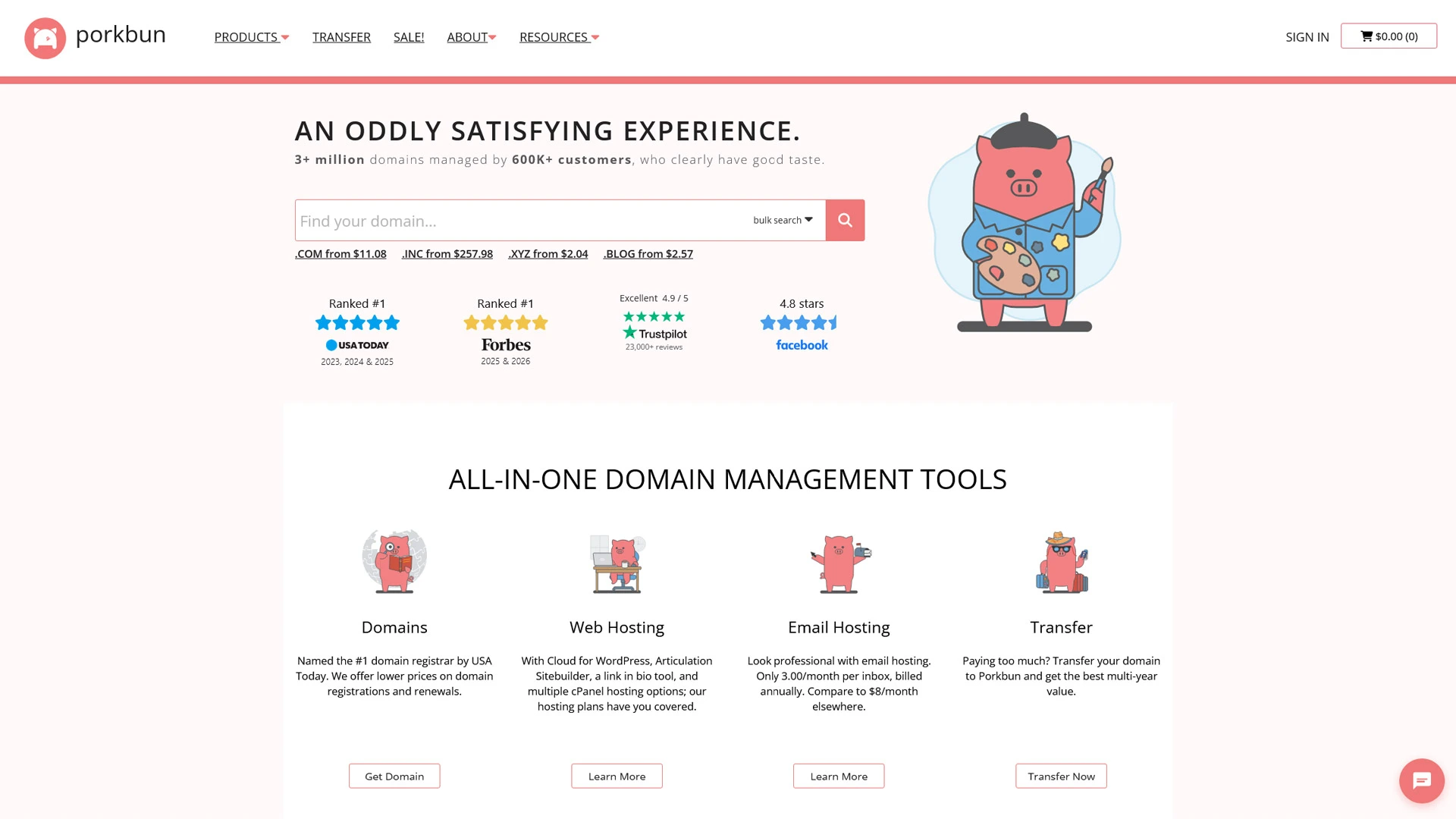
Open porkbun.com by typing the address into your browser.
You can also open Porkbun's Create Account page to go directly to the sign-up form.
Create the account with your information. Verify the email address and phone number when asked. Porkbun may request identity verification from some new accounts.
Create a unique password. Do not reuse a password from another service.
03. Step 2. Search for the Domain
Search for the exact business name.
Before adding a result to the cart, confirm:
- Every letter is correct
- The ending is the one you intended
- The name is not confusing when spoken
- It is not labeled premium
- The renewal price is acceptable
If the exact .com is unavailable, pause before adding extra words. A short, clear variation may be better than a long name that is difficult to remember.
Domain availability is not a trademark check. Confirm that the name does not conflict with an existing business or protected mark.
04. Step 3. Review the Cart
Add the domain and continue to checkout.
Porkbun may offer hosting, email, or other services. You can add them later. Skip anything that is not part of your current plan.
Write down:
- Price due today
- Renewal price
- Registration length
- Next renewal date
- Whether privacy is supported
Prices and promotions change. Use Porkbun's live pricing table rather than an old screenshot or article.
05. Step 4. Pay and Verify
Use the business payment method and complete checkout.
Open every registration or contact-verification email from Porkbun. Confirm the registrant email promptly. ICANN rules require accurate, verified contact details, and an unverified registration can be suspended.
In the domain details, confirm that the registrant contact belongs to the business. Porkbun's account contact and domain contacts are separate records. Changing one does not automatically update every existing domain.
06. Step 5. Secure the Account
Immediately:
- Turn on app-based two-factor authentication or a security key.
- Save backup codes somewhere separate from the phone.
- Turn on auto-renew.
- Confirm the saved payment method and billing details.
- Leave the transfer lock enabled.
- Add a calendar reminder at least 30 days before renewal.
- Review privacy settings for the domain.
Privacy hides eligible contact details from public lookup results. It does not replace accurate registration information.
07. Step 6. Give a Professional Access
Do not send the primary password.
Porkbun's Authorized User feature lets another verified Porkbun user manage domains and DNS. The user cannot change registrant contacts, unlock the domain, generate an authorization code, or transfer the domain.
Authorized User access is still broad. The person may purchase registrations, renewals, and hosting through the account and may use its saved payment method. Add only a trusted professional and remove access when the work ends.
To add a professional:
- Ask the professional to create their own Porkbun account.
- Confirm that both accounts have a verified email, a verified phone number, and app-based two-factor authentication or a security key.
- Ask the professional for their Porkbun username.
- In your account, open ACCOUNT > Authorized Users.
- Enter the username and submit the invitation.
- Ask the professional to accept the invitation from the email Porkbun sends.
- Return to Authorized Users to review or revoke access when needed.
08. What Not to Do
- Do not register the domain in the designer's account
- Do not choose a premium domain without checking renewal cost
- Do not buy add-ons you do not understand
- Do not click urgent renewal links from unexpected emails
- Do not share a two-factor code or transfer code
- Do not transfer the domain to a host merely to connect the website
For renewal or security messages, open Porkbun directly and check the account there.
09. Completion Check
The domain is ownership-ready when:
- You can sign in without help
- Your business is the registrant
- Primary and backup contact details belong to you
- Two-factor authentication is on
- Auto-renew uses your payment method
- The renewal date and price are recorded
- The transfer lock is on
- Any professional uses separate Authorized User access
Keep the domain at Porkbun when you move on to Buy Hosting with Hostinger.